

|
The version name makes it look as though every Windows 11 PC should move from 25H2 to 26H1. Microsoft’s 2026 guidance is more specific: 26H1 is positioned as a preinstalled release for selected new hardware rather than a routine in-place feature update for all existing PCs. Not seeing 26H1 in Windows Update is therefore not necessarily a problem. Existing-PC owners should focus on the support status of their current version, monthly updates, and recovery preparation.
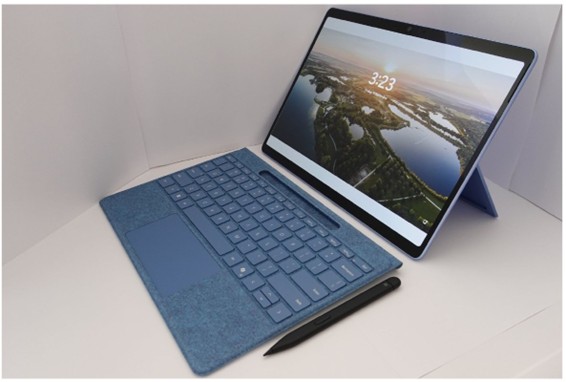
Laptop computer image. KK IN HK, background by Benh LIEU SONG, CC BY-SA 4.0. View original on Wikimedia Commons
Why 26H1 may not appear on an existing PC
Windows 11 26H1 is optimized to support next-generation silicon in selected 2026 devices. Microsoft’s release-health guidance says it is not offered as an in-place feature update to existing 24H2 or 25H2 systems. Forcing an ISO installation does not guarantee better performance and can create driver, recovery, or manufacturer-support problems. The version number matters less than receiving supported security updates on the correct channel for your device.
How to check your current version and build
Open Settings, System, About, then review Windows specifications for the edition, version, and OS build. In Windows Update, Update history shows recently installed quality updates and failed items. On a company-managed PC or a computer attached to specialized equipment, updates may be delayed by an administrator. Check organizational notices and the hardware manufacturer’s compatibility guidance first.
Six checks before updating
Most updates install without trouble, but a few minutes of recovery preparation can save hours if an installation fails.
- Record the current Windows version and OS build
- Back up important files to external storage or a cloud backup
- Leave adequate free space on the system drive
- Store the BitLocker recovery key in a Microsoft account or another safe location
- Check manufacturer support for graphics, audio, and network drivers
- Disconnect unnecessary USB devices and external drives
Security settings worth keeping enabled in 2026
In Windows Security, confirm that Virus & threat protection, Firewall & network protection, and reputation-based protection are active. Supported devices can also use Windows Hello PIN, fingerprint or face recognition, and device encryption. Instead of disabling automatic updates, set Active hours so restarts occur when the computer is not in use. Optional updates are best reviewed when they solve a specific problem or provide a feature you need.
- Real-time protection and cloud-delivered protection
- Firewall and network protection
- Reputation-based protection in App & browser control
- Windows Hello and device encryption
- Automatic updates with sensible restart hours
What to do when an update keeps failing
Before deleting update caches or applying random fixes, record the failed KB number and error code. Those details are needed to find the correct Microsoft known-issues notice or manufacturer advisory.
- Restart the PC and verify power and internet access
- Run the Windows Update troubleshooter
- Check date, time, and free storage
- Review the PC maker’s BIOS and essential driver updates
- Search the Windows release-health page for the KB number
- Prepare a restore point or backup before advanced recovery steps
Frequently Asked Questions
Q. Will installing a Windows 11 26H1 ISO make an existing PC faster?
A. It is not recommended. It is not a general feature update for existing PCs, does not guarantee a performance gain, and may cause driver or recovery problems.
Q. Are Windows 11 24H2 and 25H2 already unsupported?
A. No. Each version follows its own servicing lifecycle for monthly security, quality, and feature updates.
Q. Should I install every optional update?
A. No. Unless it solves a specific problem or lets you test a feature early, it is reasonable to wait for the regular update cycle.


