
3-Point Summary
· USB-C describes the connector shape; charging power, data standard, and video support can still differ from one cable to another.
· For laptop charging, check wattage and USB Power Delivery; for an external SSD, check data speed; for a monitor, check video support separately.
· Choose products that list watts, Gbps, resolution, and refresh rate rather than vague claims such as fast or pro.
It is common to connect a USB-C cable and discover that a laptop charges slowly, an external SSD performs poorly, or a monitor shows no image. The plugs look the same, but internal wiring and supported standards vary.
Although the USB-IF continues to update Type-C cable and connector specifications, buyers still need to separate three capabilities: power, data, and video.
The three USB-C capabilities you must evaluate separately
For charging, check the maximum safe power and USB Power Delivery support. Data performance ranges from USB 2.0 to USB4. Video requires a compatible cable standard, such as DisplayPort Alt Mode, USB4, or Thunderbolt, plus a device port that supports video output.
- Charging: 60W or 240W rating and USB PD support
- Data: a stated speed such as 5, 10, 20, or 40 Gbps
- Video: DisplayPort Alt Mode, USB4, Thunderbolt, resolution, and refresh-rate support
What do the 60W and 240W labels mean?
The wattage is the maximum power the cable is designed to carry safely. A 240W cable does not make every laptop charge at 240W. The charger, cable, and laptop negotiate a level supported by all three.
Higher-power cables may require an electronic marker chip. If the cable rating is below what the laptop requests, charging may be slow or the battery may continue to drain during heavy use.
An external SSD needs more than a basic charging cable
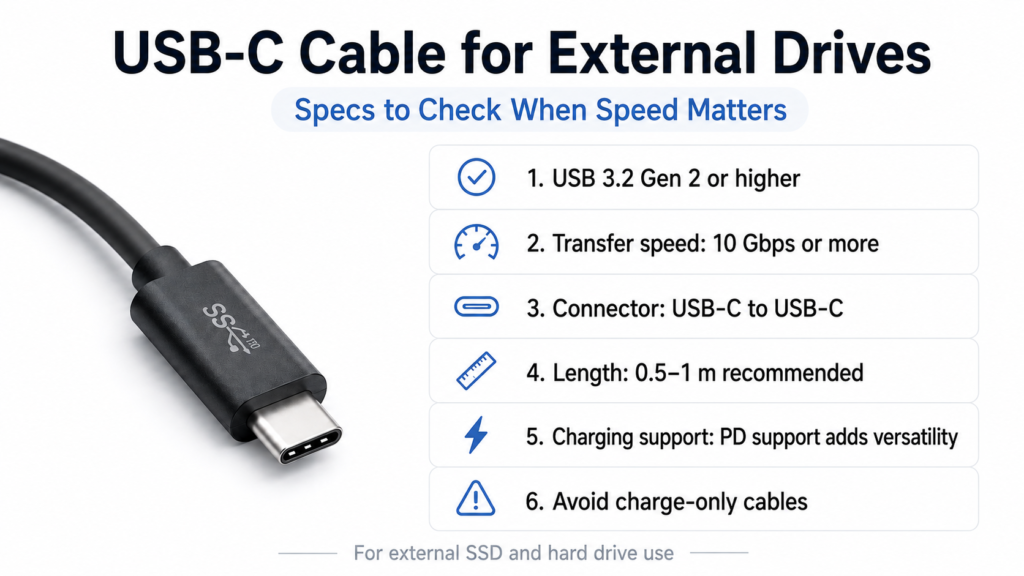
Some inexpensive charging cables carry data only at USB 2.0 speed or have limited data wiring. If you transfer photos and video regularly, look for a specific Gbps rating on the product page.
Test the same SSD with another port and a certified cable to identify whether the storage device or cable is the bottleneck. Excessive cable length can also make high-speed data and high-power delivery harder to maintain.
How to choose a cable for a monitor
Check the laptop manufacturer’s specification sheet to confirm that the USB-C port itself supports video output. Even a capable cable cannot produce an image from a port designed only for data and charging.
- Confirm video output support on the laptop port
- Look for DisplayPort Alt Mode, USB4, or Thunderbolt on the cable
- Check supported resolution and refresh rate
- For a dock or hub, review total bandwidth and power-delivery capacity
- Choose a short, certified cable whenever practical
Recommended specifications by use case
One premium cable may handle every task, but it can be thicker and more expensive. Separating cables by purpose can improve portability and cost.
- Phone charging: match the charger’s wattage, usually 1 to 2 metres
- Laptop charging: meet or exceed the device’s required wattage, support PD, usually 1 to 2 metres
- External SSD: match the drive standard, typically 10 Gbps or faster, about 0.5 to 1 metre
- 4K monitor: confirm video resolution and refresh rate and keep the cable reasonably short
- Docking station: follow USB4 or Thunderbolt specifications and the dock maker’s recommendation
A five-minute connection diagnosis
Cross-test another USB-C port on the device, the same cable with another device, and another cable with the original device. Remove the hub and connect directly to identify a hub bandwidth or power limitation.
First decide whether the failure involves power, data, or video. That simple distinction prevents many unnecessary purchases.
Frequently Asked Questions
Q. Can every USB-C cable charge a laptop?
A. No. The charger and cable must support the power the laptop requires, and some USB-C ports do not accept power input.
Q. Is a 240W cable automatically faster for data than a 60W cable?
A. No. Power rating and data speed are separate. A 240W cable may still have slow data transfer, so check both specifications.
Q. Why does my USB-C monitor show no image?
A. The laptop port, cable, or hub may not support video output, or the available bandwidth may be insufficient for the selected resolution and refresh rate.


